Course audio setup
Natural Danish voices in Google Chrome
EasyDanish uses your browser's speech voices for interactive pronunciation and listening practice. Chrome's natural voices are added through Reading mode, rather than through Chrome's ordinary language settings.
Set up a natural Danish voice in Chrome
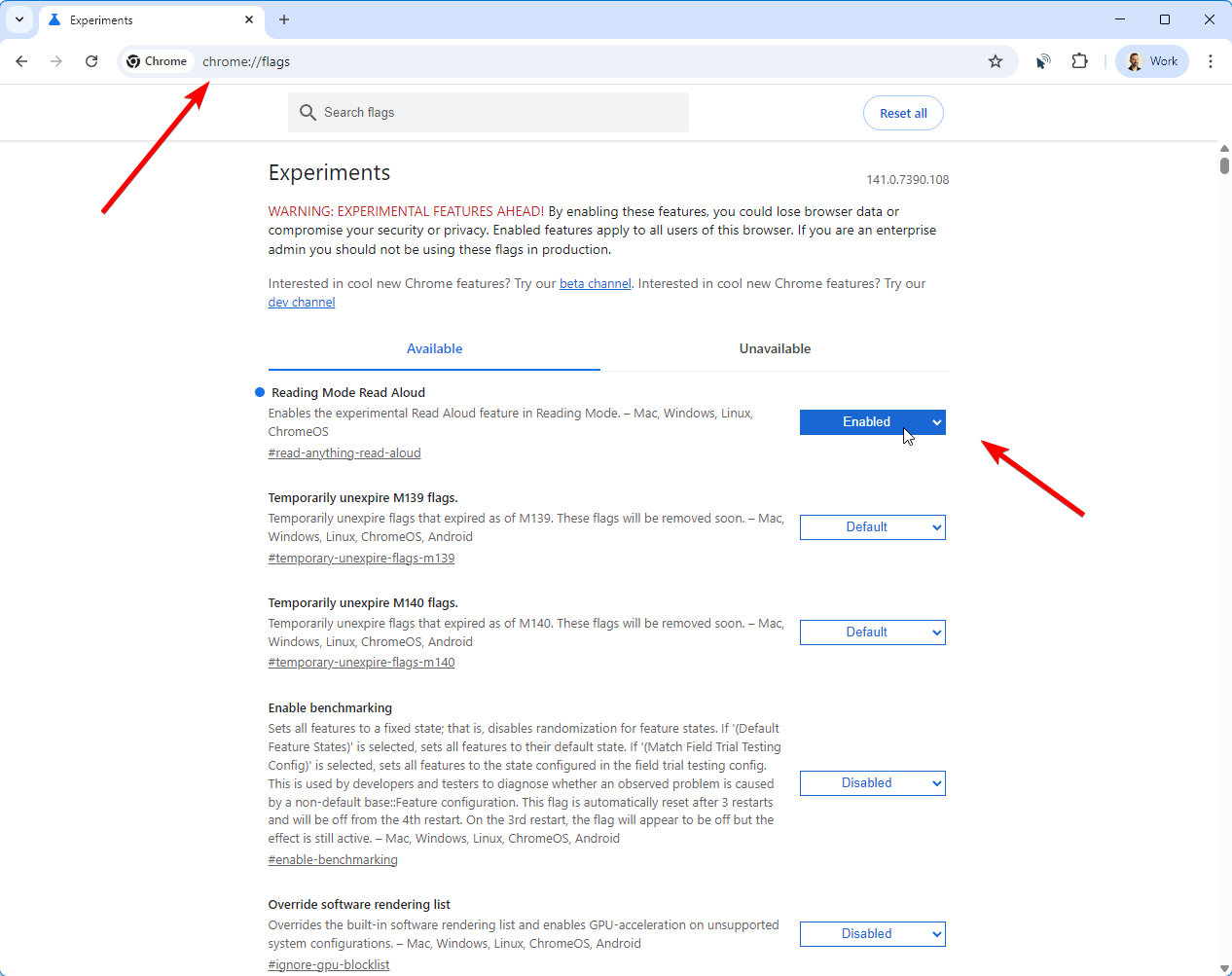
- Open a new Chrome tab and go to chrome://flags.
- Search for Reading Mode Read Aloud and change it to Enabled.
- Click Relaunch when Chrome offers to restart.
- Open an article-style page, right-click it, and choose Open in reading mode.
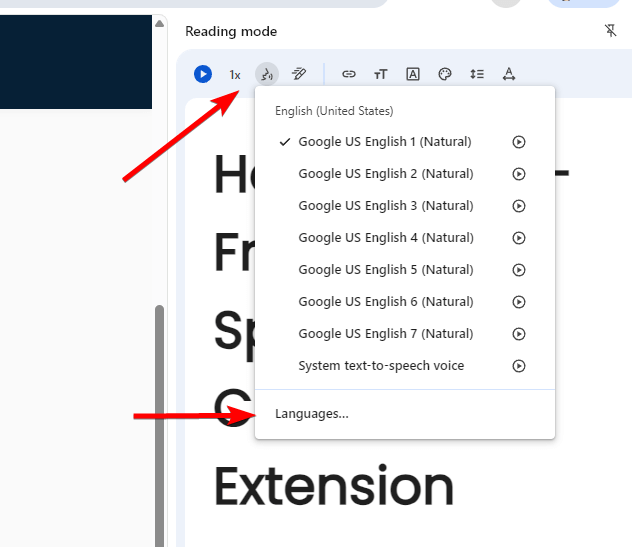
- In the Reading mode side panel, open the voice selection menu and choose Languages.
- Turn on Danish. Chrome will download and add its natural Danish voices.
- Return to an EasyDanish course lesson and press a speaker button to use the Danish voice.
Do not use Chrome Settings → Languages for this. That area controls Chrome's interface and translation languages; natural text-to-speech voices are added from Reading mode's voice menu.
If Chrome removes the voice
Chrome may remove the added language and voice after a complete browser restart. Open Reading mode again and reopen its language list; Chrome should restore the added voice. The Reading Mode Read Aloud flag is experimental, so Chrome may change these steps over time.
Our recommendation: Microsoft Edge
We recommend Microsoft Edge for the smoothest experience with natural Danish voices. Edge provides its natural voices without the Chrome and Windows voice setup described above.